Banner 2 of the Beautiful Cookie Banner currently offers six built-in color themes. A feature for fully customizing colors without code is planned, but until then you can adjust the colors using CSS.
This guide shows how to override the colors of an existing theme. In the examples below, we use the light-blue theme.
1. Locate the Theme Definition
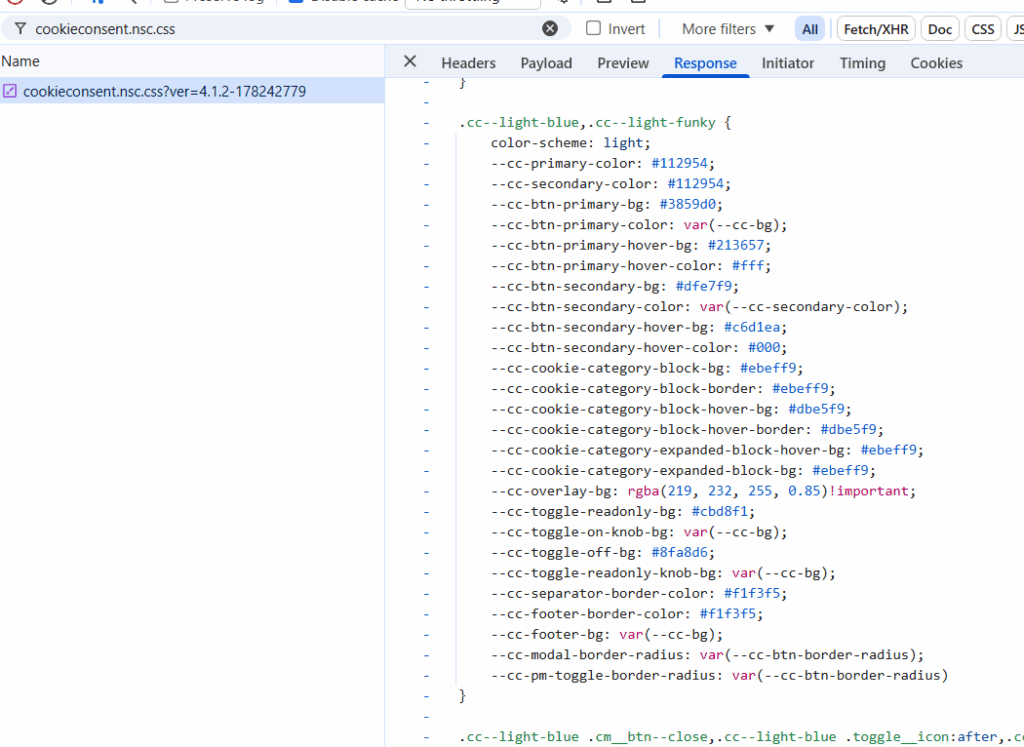
Open the file cookieconsent.nsc.css and search for the CSS block that defines your chosen theme (for example, .cc-light-blue).
Copy this entire theme section.
2. Add the Theme Definition to Your Own CSS
Paste the copied CSS into your own stylesheet.
You must ensure that your stylesheet is loaded after cookieconsent.nsc.css. This guarantees that your custom rules will override the defaults.
3. Apply Your Custom Styles
Edit the pasted CSS to match your desired colors. Any property defined here will overwrite the theme’s original values.
Example: Overriding the Light-Blue Theme with Red Buttons (Inline CSS)
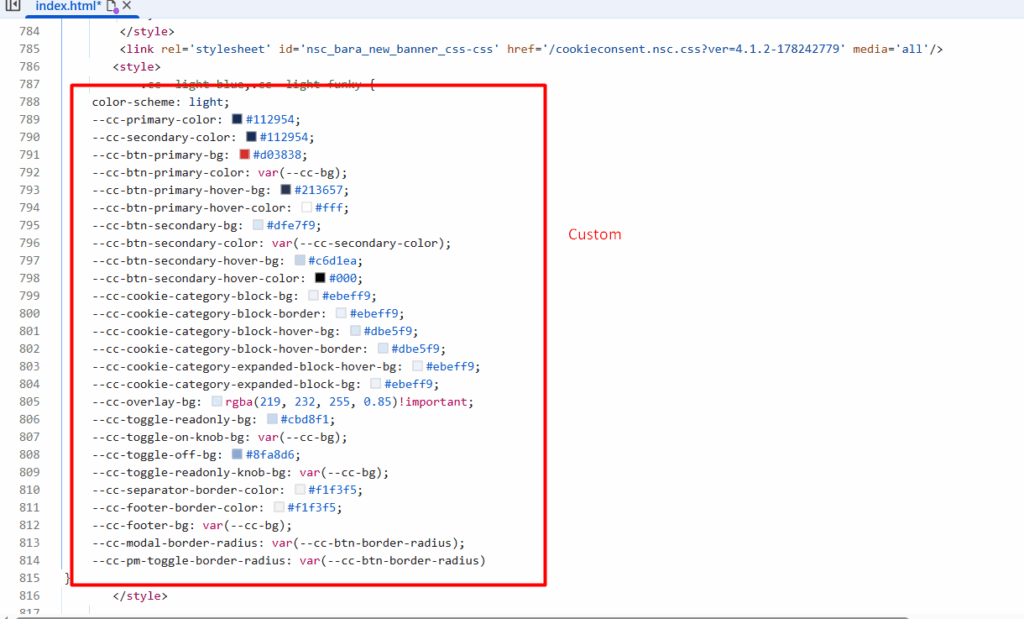
This example shows how to override just the button colors, but you can adjust any part of the theme using the same approach.